Tutorial: Record and replay HTTP requests and responses

For a basic introduction to HTTP record and replay with examples have a look at Record and replay HTTP requests and responses to create API mocks.

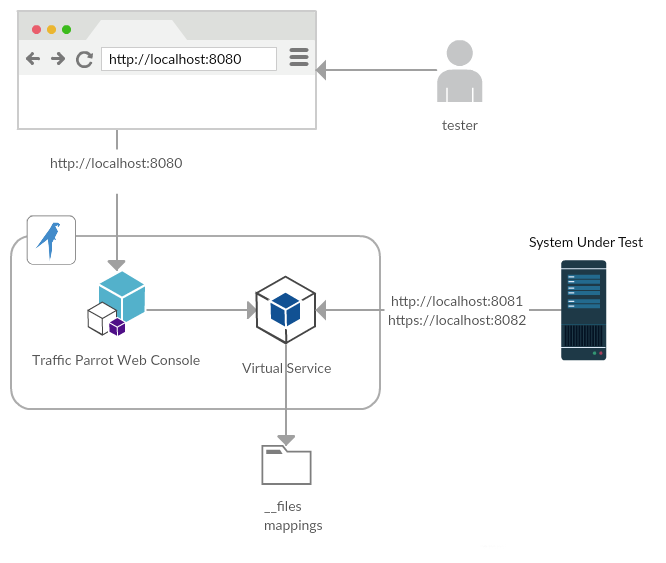
HTTP virtual service architecture

A tester uses a web browser to access the console. The console manages the virtual service. The system under test (application under test) connects directly to the virtual service on different ports.
screenshot

Supported HTTP protocols

Traffic Parrot's HTTP virtual service speaks HTTP/1.0, HTTP/1.1, and HTTP/2 out of the box. HTTP/2 is enabled by default on both the HTTPS port (ALPN-negotiated) and the plain HTTP port (h2c upgrade). There is no Traffic Parrot configuration flag to disable HTTP/2 — the same stubs are served regardless of the protocol the client picks.

Protocol Port Default Supported since
HTTP/1.0, HTTP/1.1 HTTP and HTTPS Always on All versions
HTTP/2 over TLS (ALPN-negotiated) HTTPS only On Traffic Parrot 5.53.0
HTTP/2 cleartext (h2c upgrade) HTTP only On Traffic Parrot 5.53.0

Import and export HTTP mappings

How to export

First, go to HTTP in the top navigation bar and then click Export.

Click the button to download a ZIP file that contains all of the HTTP mappings in the WireMock format.

You can also export programmatically using the Traffic Parrot Management APIs.

How to import

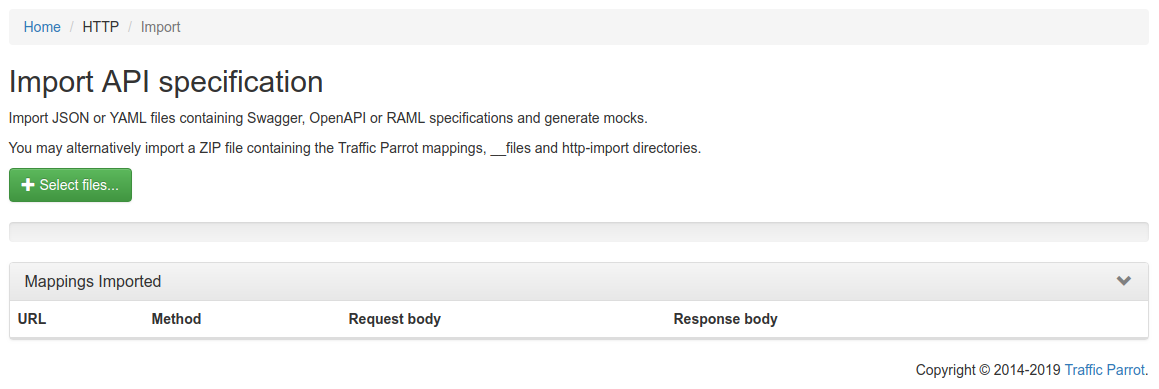
First, go to HTTP in the top navigation bar and then click Import.

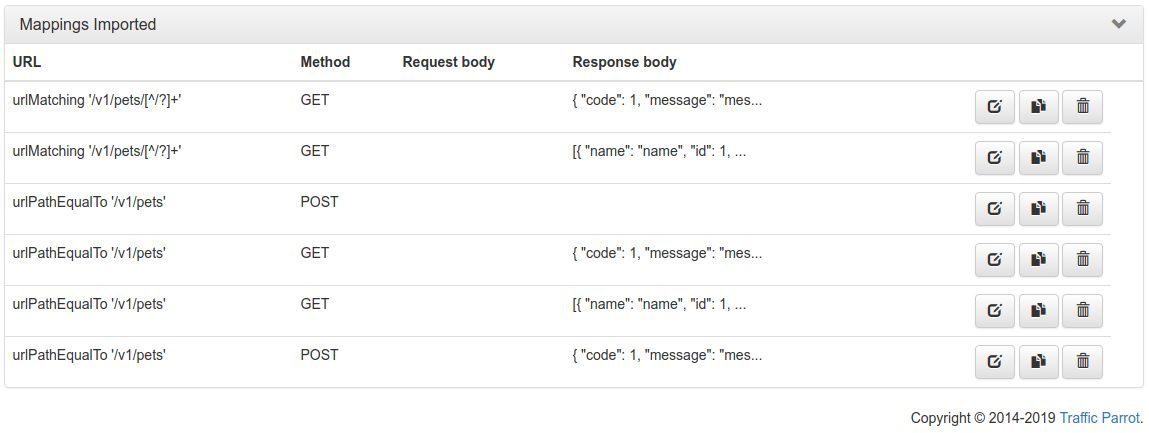
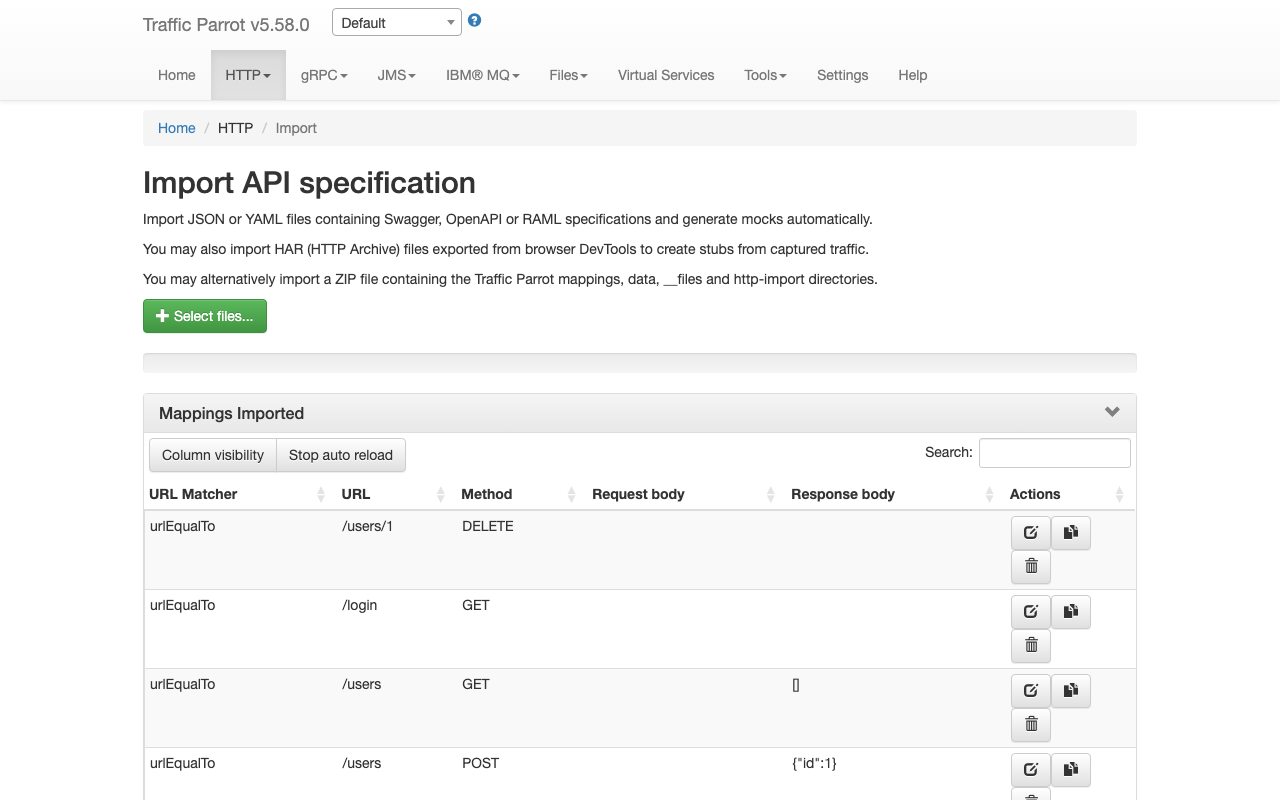
Click the button and select the file(s) to import using the file picker. Traffic Parrot will display the mappings that were successfully imported in the table below.

You can also import programmatically using the Traffic Parrot Management APIs.

Supported formats

Traffic Parrot has support for the following formats to import:
  • WireMock mappings in ZIP format
  • Swagger 1.x and 2.x (both YAML and JSON)
  • OpenAPI 2.x and 3.x (both YAML and JSON)
  • RAML 0.8
  • HAR 1.1 and 1.2 (HTTP Archive files exported from browser DevTools)

Importing HAR files

HAR (HTTP Archive) files let you create stubs from captured network traffic rather than writing them from scratch. To obtain a HAR file:

  1. Open the browser DevTools (press F12 or right-click and select "Inspect")
  2. Go to the Network tab
  3. Interact with the application to capture the HTTP traffic you want to mock
  4. Right-click on any request in the network list and select Save all as HAR with content (Chrome) or Save All As HAR (Firefox)

Then import the .har file. Traffic Parrot creates a stub mapping for each HTTP request/response pair, named with a [HAR Import] prefix followed by the status code, HTTP method, and URL path for easy identification.

What gets imported

  • Request matching — HTTP method and exact URL path including query string parameters
  • Content-Type matching — when the original request included a Content-Type header, the stub also matches on it
  • Response — status code, body (base64-encoded bodies are decoded automatically), and Content-Type header

Other request headers (Accept, User-Agent, Cookie, etc.) and response headers are excluded to keep stubs flexible. HAR files can also be placed inside ZIP archives in the http-import/ directory.

Preview and filter before importing

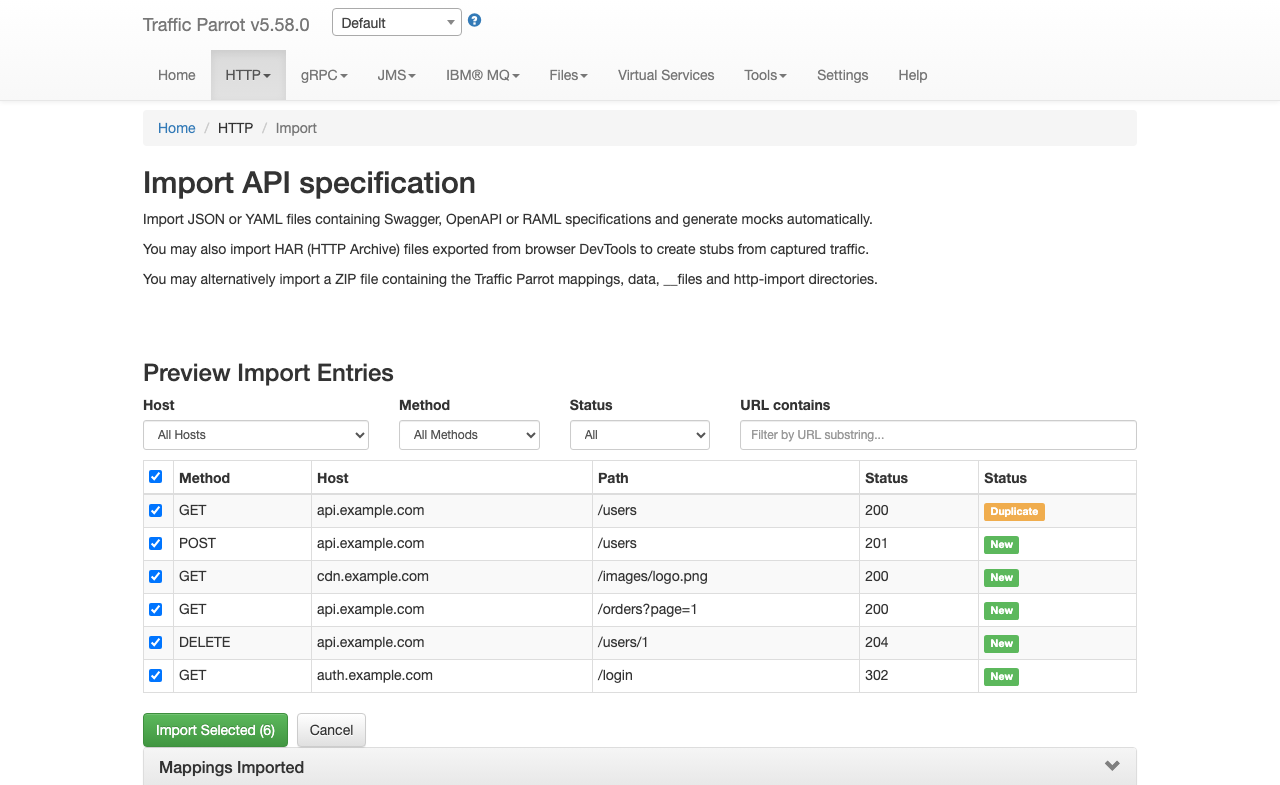
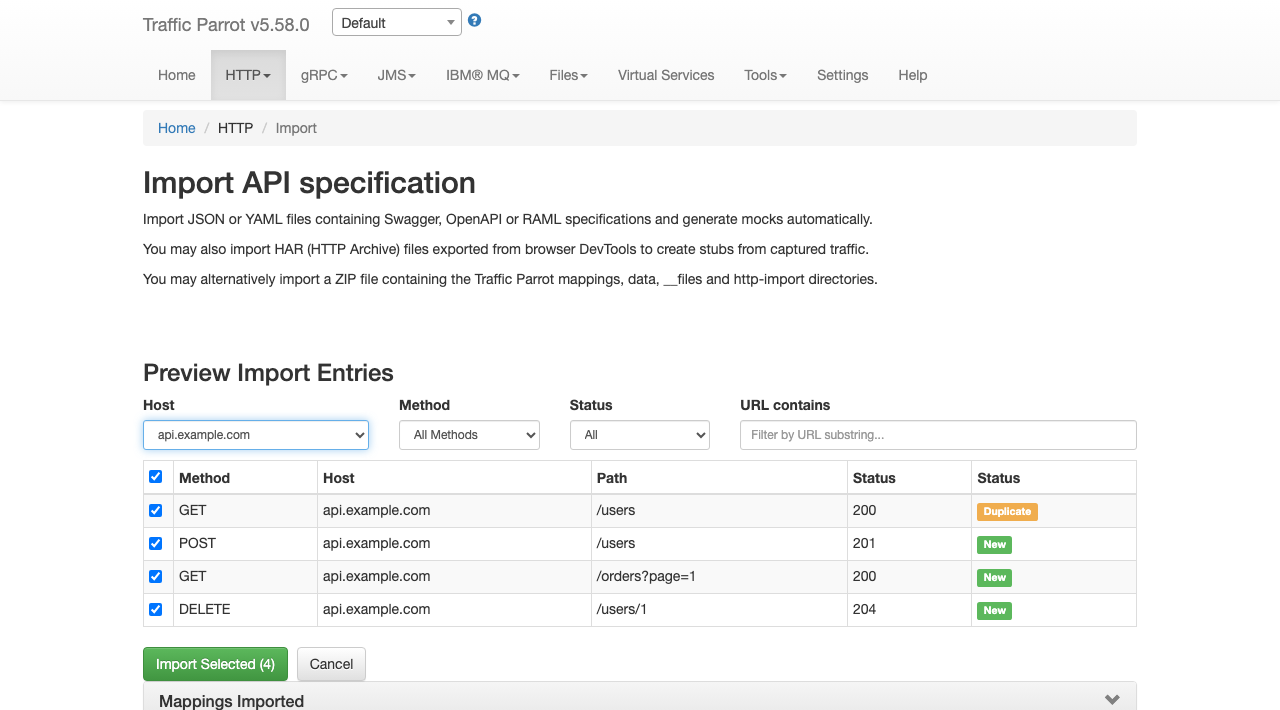
When you upload a HAR or OpenAPI file, Traffic Parrot shows a preview of the entries before importing. This lets you review, filter, and select exactly which stubs to create.

Filtering entries

The preview panel provides four filters that you can use to narrow down the entries:

  • Host — dropdown auto-populated with the unique hosts found in the file
  • Method — dropdown auto-populated with the HTTP methods found in the file (GET, POST, PUT, DELETE, etc.)
  • Status — dropdown to filter by status code range (2xx, 3xx, 4xx, 5xx)
  • URL contains — text input to filter by URL substring

All filtering happens instantly in the browser without extra server requests. Filters combine with AND logic (e.g. selecting host "api.example.com" and method "POST" shows only POST requests to api.example.com).

Selecting entries

Each entry has a checkbox. Use the header checkbox to select or deselect all visible (filtered) entries at once. You can also toggle individual entries. The "Import Selected" button shows the count of selected entries and is disabled when no entries are selected.

Duplicate detection

The Status column shows whether each entry is new or already exists. Entries that do not match any existing stub display a green "New" badge. If an entry matches an existing stub with the same HTTP method and URL, a yellow "Duplicate" badge appears instead, helping you avoid importing stubs that already exist.

Importing selected entries

Click "Import Selected" to create stubs only for the checked entries. The imported mappings appear in the table below. Click "Cancel" to discard the preview and return to the file selector.

Format support

The preview and filter flow is available for HAR and OpenAPI/Swagger files. RAML files and WireMock ZIP archives are imported directly without a preview step.

Importing via REST API (curl)

You can import mapping files programmatically using the REST API instead of the web UI. This is useful for CI/CD pipelines and automation scripts.

Send a POST request to /http/management/importMappings with the file(s) as a multipart form upload:

# Import a single file (HAR, OpenAPI/Swagger, RAML, or WireMock ZIP)
curl -X POST http://localhost:8080/http/management/importMappings \
  -F "files[]=@capture.har"

# Import multiple files at once
curl -X POST http://localhost:8080/http/management/importMappings \
  -F "files[]=@api-spec.yaml" \
  -F "files[]=@capture.har"

On success, the response contains the IDs of the imported mappings:

{"mappings":["id1","id2",...]}

On failure, the response returns HTTP 400 with an error message:

{"result":"error message"}

This endpoint supports all supported import formats: HAR, Swagger/OpenAPI, RAML, and WireMock ZIP.

Preview before importing

You can preview the entries that would be created before committing to an import. Send a POST request to /http/management/previewImport:

curl -X POST http://localhost:8080/http/management/previewImport \
  -F "file=@capture.har"

The response contains a list of entries with their method, host, path, and status code:

{
  "previewSupported": true,
  "entries": [
    {"index": 0, "method": "GET", "host": "api.example.com", "pathWithQuery": "/users", "statusCode": 200, "duplicate": false},
    {"index": 1, "method": "POST", "host": "api.example.com", "pathWithQuery": "/users", "statusCode": 201, "duplicate": false}
  ],
  "hosts": ["api.example.com"],
  "methods": ["GET", "POST"]
}

For file types that do not support preview (RAML, WireMock ZIP), the response returns {"previewSupported": false}.

Filtered import

To import only specific entries, send a POST request to /http/management/importSelectedEntries with the file and filter parameters:

# Import specific entries by index (from the preview response)
curl -X POST http://localhost:8080/http/management/importSelectedEntries \
  -F "file=@capture.har" \
  -F "selectedIndices=0,2,5"

# Import entries matching filter criteria
curl -X POST http://localhost:8080/http/management/importSelectedEntries \
  -F "file=@capture.har" \
  -F "hostFilter=api.example.com,auth.example.com" \
  -F "methodFilter=GET,POST" \
  -F "statusFilter=2xx,4xx" \
  -F "urlFilter=/api/v1,/users"

Available filter parameters (all accept comma-separated values):

Parameter Description
selectedIndices Entry indices from the preview response (e.g. 0,2,5). Takes precedence over other filters.
hostFilter Include only entries matching these hosts (e.g. api.example.com,auth.example.com)
methodFilter Include only entries matching these HTTP methods (e.g. GET,POST)
statusFilter Include only entries matching these status ranges (e.g. 2xx,4xx)
urlFilter Include only entries whose URL contains one of these substrings (e.g. /api/v1,/users)

Filters combine with AND logic across filter types and OR logic within each filter type. For example, hostFilter=api.example.com&methodFilter=POST,PUT imports POST and PUT requests to api.example.com. If no filter parameters or indices are provided, all entries are imported.

Dynamic responses

When importing from a specification format such as Swagger or OpenAPI, it is possible to use dynamic responses in the example responses in the specification.

Dynamic responses typically result in usage of the {{...}} notation that is not valid JSON or YAML. In these cases, you will need to specify the response as an escaped string when using JSON or YAML based import formats such as Swagger and OpenAPI.

You can find examples of dynamic OpenAPI responses in the examples project.

Matching response code

Traffic Parrot also supports selecting the response to return using a special test request header

x-traffic-parrot-select-response-status

that contains the status code of the response to return.

In this way, you can define OpenAPI examples for each status code, and then when you import them into Traffic Parrot, you can select a response by providing the test header with the response status code.

For example:
POST /example HTTP/1.1
x-traffic-parrot-select-response-status: 400

HTTP/1.1 400 Bad Request
{
  "example": "Message from OpenAPI example"
}
This feature can be enabled in trafficparrot.properties by setting:
trafficparrot.openapi.import.mode=SELECT_RESPONSE_STATUS
trafficparrot.openapi.skeletons.mode=SELECT_RESPONSE_STATUS
  • When OpenAPI response examples are present, they are used directly as mock responses
  • Otherwise, OpenAPI schema data types and field structures are used to generate a valid mock response
  • The request header x-traffic-parrot-select-response-status can be set to a numeric response code to select which response to return
  • The default response returned is the success response
  • The request body is not included in matching, to simplify the response selection
  • The request URL is used for matching, including checking for mandatory path and query parameters

Add/Edit HTTP mappings

Usage

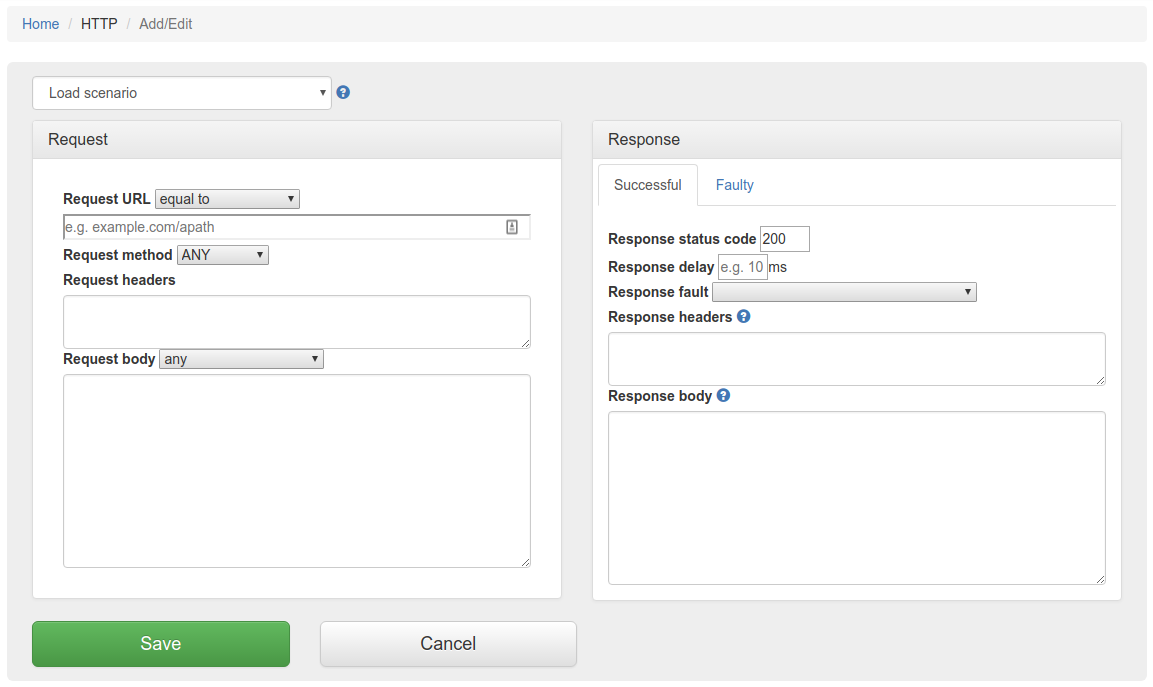
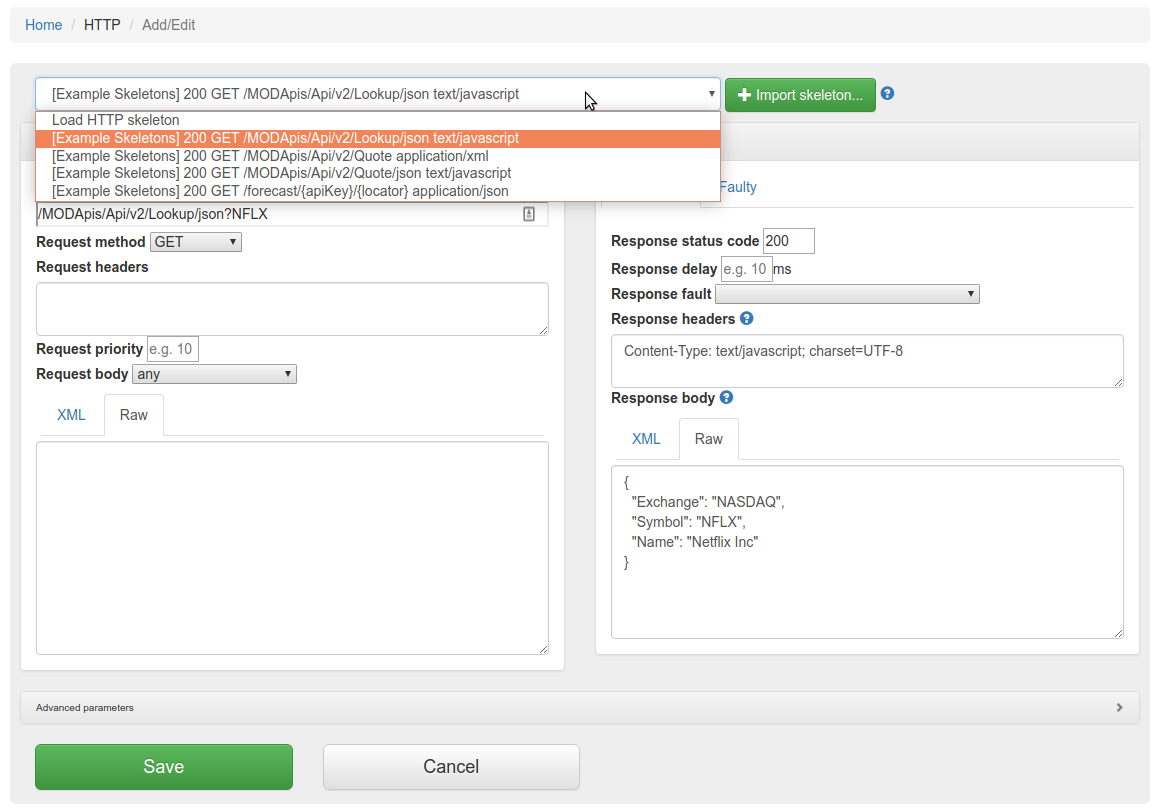
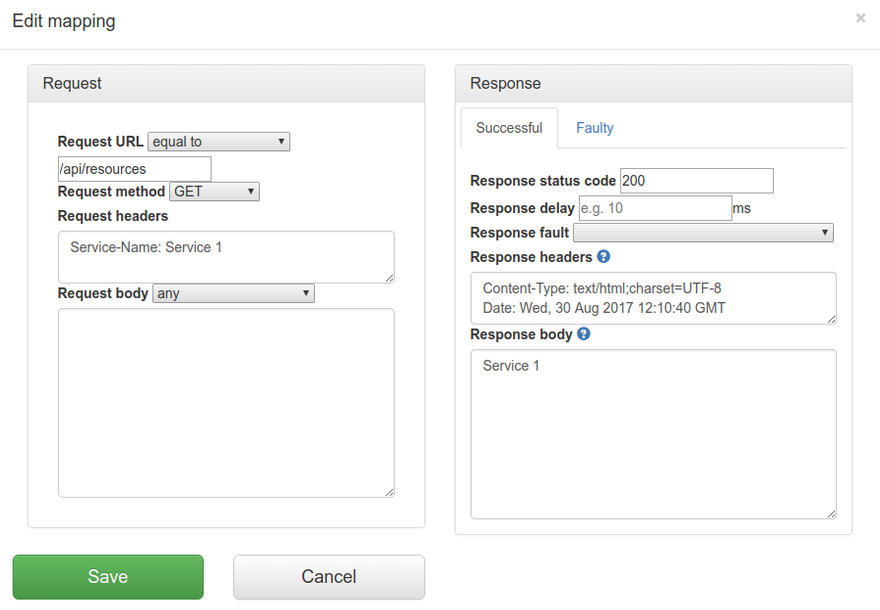
First, go to HTTP in the top navigation bar and then click Add/Edit.

Fill in the Request/Response fields and click Save to configure a mapping.

You can also select from the HTTP skeleton dropdown which will populate the Request/Response fields for that skeleton.

After saving the mapping, it will appear in the list of mappings.

Clicking the edit button will allow you to edit an existing mapping.
Query parameters

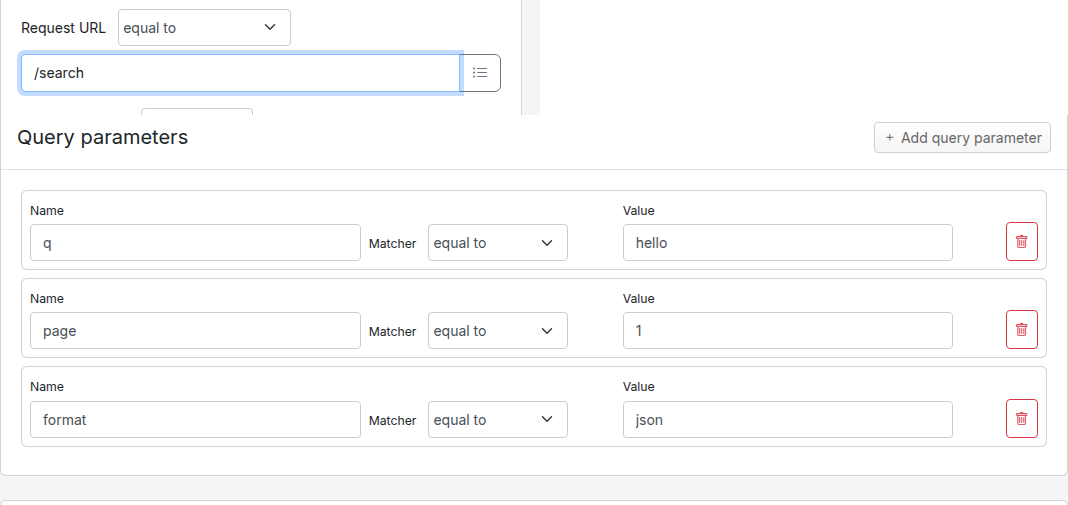
The Edit Mapping panel has a dedicated Query parameters panel below the Request / Response panels that lets you match individual query string parameters without putting them in the URL field or hand-writing a URL regex.

When a mapping has no query parameter matchers, the panel shows only its heading and the Add query parameter button. Click Add query parameter to add the first row; each additional click appends another row. Each row exposes a parameter name, a matcher dropdown, an optional value, and a remove button.

Query parameters panel on the Edit Mapping form, showing three example rows: q equal to hello, page matches regex [0-9]+, and debug absent.
Matcher Behaviour Value field
equal to The query parameter must be present and its value must be exactly the value you entered. Required
contains The query parameter must be present and its value must contain the entered substring. Required
matches regex The query parameter must be present and its value must match the entered Java regular expression. Required
absent The query parameter must not be present on the request. The mapping does not match if the request includes the named parameter (with any value). Hidden — no value is needed

Saving the mapping produces standard WireMock queryParameters JSON. Each row becomes one entry, keyed by parameter name:

{
  "request": {
    "method": "GET",
    "urlPath": "/search",
    "queryParameters": {
      "q":       { "equalTo": "test" },
      "page":    { "matches": "[0-9]+" },
      "preview": { "absent": true }
    }
  },
  "response": {
    "status": 200,
    "body": "..."
  }
}

Loading a mapping that already contains a queryParameters block populates the rows on the form — the round-trip is preserved, so editing and re-saving a mapping does not change or drop existing query parameter matchers.

A mapping with queryParameters matches loosely — a request that includes additional query parameters not listed in the mapping still matches, provided every listed parameter satisfies its matcher. To match only on the path, use urlPath or urlPathPattern in the URL field; using url or urlPattern together with queryParameters is supported but the URL must not itself include a query string.

When to use Query parameters vs. the URL field
Use case Recommended approach
Match one or more specific query parameters, where parameter order in the request URL is not known or not stable Use the Query parameters section with one row per parameter
Match against a value pattern, a substring, or "this parameter must be absent" Use the Query parameters section with the matches regex, contains, or absent matcher
Match the entire URL including a fixed query string, character-for-character Use equal to on the URL field with the full path plus query string (e.g. /search?q=test&page=1)
Match the same parameter appearing more than once on the request (e.g. ?tag=a&tag=b) Use matches regex on the URL field with a lookahead pattern such as ^/search\?(?=.*\btag=a\b)(?=.*\btag=b\b).*$. Multi-occurrence parameters are deliberately not surfaced in the Query parameters section.

The older approaches (full query string in urlEqualTo, lookahead regex in urlMatching) continue to work for existing mappings — the new section is additive. For most cases though, the Query parameters section produces a mapping that is easier to read, easier to edit, and tolerant of parameter ordering in the incoming request.

Convert query string to rows

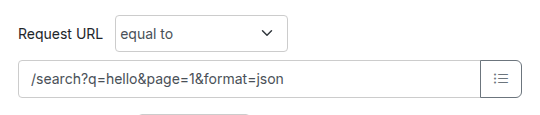
Pasting a full URL (e.g. one copied from a browser or a curl command) into the Request URL field leaves the query string baked into the URL value, which means the mapping then matches the exact query string only. To convert that query string into per-parameter rows in the Query parameters section in one click, use the Convert query string to rows link that appears directly below the Request URL input on the Edit Mapping panel.

Clicking the link parses each name=value pair from the URL's query string, appends one row per pair to the Query parameters section with the matcher set to equal to, and strips the query string from the Request URL field. URL-encoded characters in values (e.g. %20) are decoded automatically. The link does not save the mapping — the form changes are staged in the browser and you still need to click Save to commit them.

Before clicking the link, the Request URL field still contains the full URL with its query string and the Query parameters section is empty:

Edit Mapping panel with Request URL set to /search?q=hello&page=1&format=json and an empty Query parameters section; the Convert query string to rows link is visible directly below the URL input.

After clicking the link, the query string has been stripped from the URL and one equal to row has been appended for each name=value pair:

Edit Mapping panel after clicking Convert query string to rows: Request URL is now /search and the Query parameters section contains three rows: q equal to hello, page equal to 1, format equal to json.

Example: with the Request URL set to /search?q=hello%20world&page=1, clicking Convert query string to rows rewrites the URL field to /search and adds two rows under Query parameters: name q with matcher equal to and value hello world, and name page with matcher equal to and value 1. Existing rows are not touched — converted rows are appended to whatever rows are already present.

If the URL has no query string the link is a no-op. Multi-occurrence parameters (e.g. ?tag=a&tag=b) produce one row per occurrence, but because the saved queryParameters JSON is keyed by parameter name, only the last row for a given name takes effect at match time. To match the same parameter appearing more than once, keep using the urlMatching lookahead workaround described in the Query parameters section above.

Priority

The request priority can be set in order to set up a preference order for matching mappings. This works in the same way that priority works in WireMock.

The highest priority value is 1. If two or more mappings both match a request, the mapping with the higher priority will be used to provide the response. The default priority is 5.

This can be useful, if you want a "catch-all" mapping that returns a general response for most requests and specific mappings on top that return more specific responses.

Enable/disable mappings

You can temporarily disable a mapping without deleting it. Disabled mappings remain in the mapping list but are skipped during request matching, so no incoming request will match them.

In the mapping list, each mapping has a toggle button (eye icon) in the actions column. Click the toggle to disable a mapping. The mapping row appears dimmed to indicate it is disabled. Click the toggle again to re-enable it.

This is useful for:

  • Temporarily removing a mapping from matching without losing its configuration
  • Simulating service failures by disabling specific response mappings
  • A/B testing different response configurations

The enable/disable state is stored in the mapping's metadata as tp.enabled. Mappings without this metadata field default to enabled, so existing mappings are not affected.

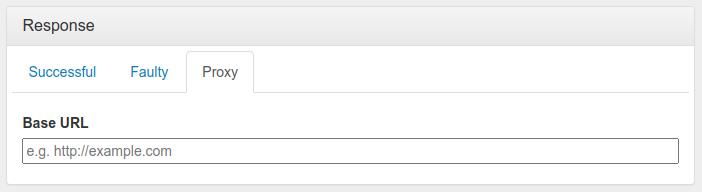
Proxy responses for request passthrough

Traffic Parrot supports responding with a HTTP response including headers, body and status code, from another HTTP server.

This can be used to forward the requests you don't have mappings for to another endpoint.

You can use this to provide a default response for unmatched requests:

  1. Set a low priority like 10 for the mapping with the proxy response
  2. Leave default priority for other non-proxy response mappings
  3. Now any unmatched requests will return a response from the proxy mapping

Alternatively, you can configure automatic passthrough for all unmatched requests using the HTTP Passthrough Proxy property. This creates the catch-all proxy mapping automatically on startup.

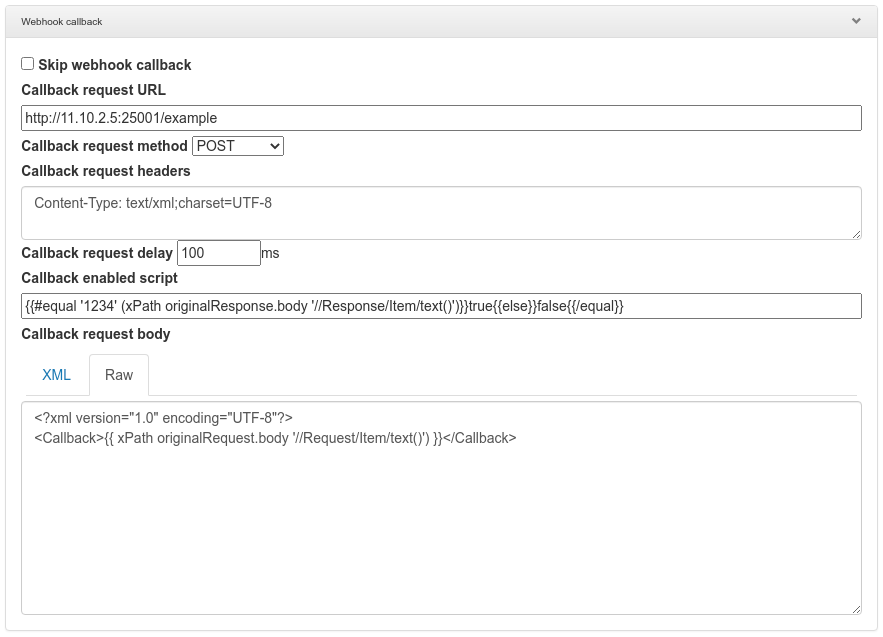
Webhooks or callbacks

Traffic Parrot can also be configured to send an additional HTTP request after the mock response has been returned. This is called HTTP webhooks or callbacks.

It is possible to enable the callback based on a script evaluation condition. For example, this can be used to only send the callback if the mock response contains a particular success code.

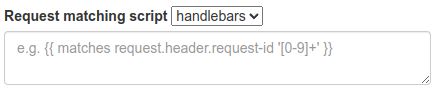
Request matcher script

Another way to match HTTP requests is with a request matcher script. If the expression evaluates to true, then the request is matched, otherwise it is not matched.

For example, Handlebars templating can be used to match a request header using a regular expression:

HTTP skeletons

HTTP skeletons offer a quick way to generate a template of a mapping that matches an endpoint defined in an OpenAPI specification file. We may also add support for other specifications e.g. RAML in the future.

In order to edit the list of elements on the HTTP skeletons dropdown on the Add/Edit page you will need to place OpenAPI specifications into the file trafficparrot-x.y.z/openapi configuration directory. JSON and YAML OpenAPI files are supported.

Alternatively, you can use the button to import OpenAPI files. If you import a file with the same name as a file that was previously imported, it will be overwritten.
OpenAPI schema check

Traffic Parrot can validate your HTTP mappings against OpenAPI specification files at startup. This helps you detect drift between your API specifications and your virtual service mappings — for example, when an endpoint is renamed or removed from the specification but the corresponding mapping is not updated.

When enabled, Traffic Parrot checks that each HTTP mapping's URL path and HTTP method match an operation defined in at least one of the loaded OpenAPI specification files. If any mappings reference endpoints not found in the specifications, startup is prevented and detailed error messages are logged.

Enabling the check

To enable the OpenAPI schema check, set the following property in trafficparrot.properties:

trafficparrot.virtualservice.openapi.check.mapping.schema.on.startup=true

By default this property is set to false, so the check does not run and existing behaviour is unchanged.

Setting up OpenAPI specifications

Place your OpenAPI specification files (JSON or YAML, versions 2.x and 3.x) in the scenarios/{scenario}/openapi/ directory. If multiple specification files are present, all operations from all files are aggregated before the check runs.

If no OpenAPI specification files are found, the check passes silently and startup proceeds as normal.

What is checked

  • Each HTTP mapping's URL path is compared against the paths defined in the OpenAPI specifications
  • The HTTP method of each mapping must match a method defined for that path in the specification
  • URL matching supports exact paths, path-only matching, and path templates with parameters — mappings using regex URL patterns are skipped
  • Mappings without a method or with the ANY method are skipped

Error reporting

When violations are found, Traffic Parrot prevents startup and logs detailed error messages including the mapping ID, URL, HTTP method, and the reason for the mismatch. This is similar to the gRPC schema check feature.

SOAP

Record SOAP and generate dynamic responses

Traffic Parrot helps with SOAP and XML mocking by providing an XML editor, the matchesXML request body matcher and dynamic response helpers such as xPath and xPathList.

Please see the video below for a full demo of recording SOAP requests and responses, and then generating dynamic responses.

Please download Traffic Parrot and the sample UV Index SOAP application and follow the demo in the video below.

If you cannot see a video frame below please download it here

Recording HTTP

Configuration

If your system requires the use of an outbound HTTP proxy (e.g. in a corporate environment) you will need to make sure Traffic Parrot was started using those proxy settings so that it can correctly record. See the configuration guide HTTP proxy settings.

If you need to record a system with a certificate that is not trusted by default, you will need to specify the trust store properties. See the configuration guide Outbound HTTPS certificates.

If you need to record a system that requires a client certificate for authentication, you will need to specify the key store properties. See the configuration guide Outbound HTTPS certificates.

Usage

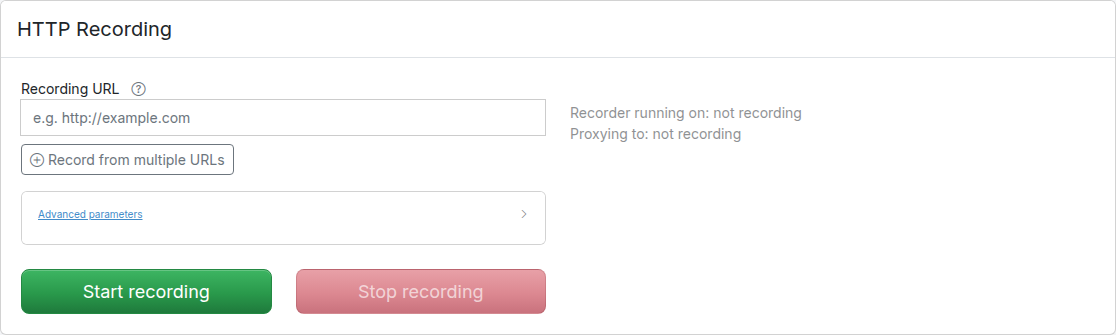
First, navigate to the recording page by clicking HTTP in the top navigation bar and then click Record.

In order to record traffic to a URL, simply enter the Recording URL and click Start recording.

All traffic received by the Traffic Parrot virtual service will be proxied to the host in the Recording URL and recorded as mappings.

Clicking the edit button will allow you to edit the recorded mapping.

Existing mappings

If there are existing mappings present before a recording starts, these mappings will be used to return responses instead of recording a new response.

For example, if there is a mapping with path equal to /example then any traffic to path /example will return a response from the existing mapping and traffic to other paths will still be recorded.

Deleting mappings while recording

You can delete a recorded mapping while a recording session is still active — for example to prune noise as it is captured. When you delete a mapping during recording, Traffic Parrot remembers that endpoint for the rest of the current recording session, so the same request is not recorded again if it is proxied a second time.

The endpoint is matched by HTTP method and normalised URL path, so query-string variants and numeric-id variants (for example /orders/123 and /orders/456) of the deleted request are suppressed as well.

Note

This suppression is scoped to the current recording session. It is cleared when you stop recording (and at the start of each new recording session), so a previously deleted endpoint becomes recordable again in a fresh recording session. This applies to HTTP recording.

Filter by URL path

If the Recording URL includes a path, only traffic to this path will be recorded, however all traffic will still be proxied.

For example, if the Recording URL is set to http://example.com/aSampleResource then only traffic to paths staring with /aSampleResource will be recorded and all other traffic will be proxied to http://example.com without saving mappings.

Filter by Content-Type

In order to record only specified content types go to trafficparrot.properties file and change the value of the property:
trafficparrot.virtualservice.recordOnlyContentTypesContaining=TP_RECORD_ALL_CONTENT_TYPES
to include content types you would like to record, for example:
trafficparrot.virtualservice.recordOnlyContentTypesContaining=application/javascript,application/xml

Recording multiple APIs

By default the Record page shows a single Recording URL input for the common case of recording one backend. To record from multiple backends in a single session, click Record from multiple URLs below the input. This reveals a URL pattern field alongside the target field and adds a second row so you can route different paths to different backends. Use Add proxy target to add more rows, or click the remove button on a row to delete it. Removing rows until only one row remains with an empty pattern returns the form to the simple single-URL mode.

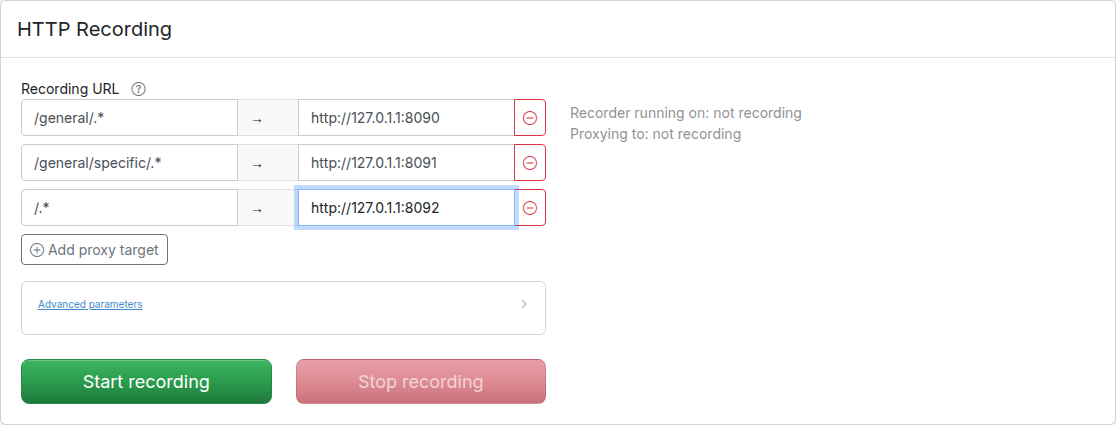
Each row consists of a URL pattern (a regular expression matched against the request path) and a target URL. For example:

Record multiple HTTP URLs in Traffic Parrot

The path is used to determine which API should be used to provide the recorded response. The expression .* is used as a wildcard matcher.

In the example above:
  • /general/something will route to http://127.0.1.1:8090
  • /general/specific/something will route to http://127.0.1.1:8091
  • /something will route to http://127.0.1.1:8092

Recording headers for matching

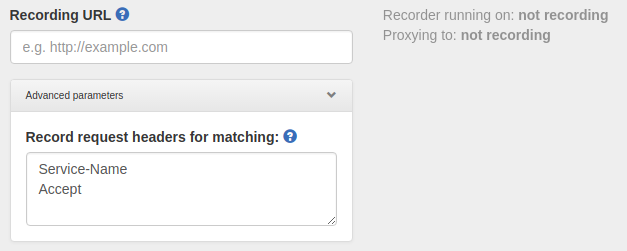
In order to record HTTP request headers that can be later used for matching request go to the HTTP->Record page, click on "Advanced parameters" and fill in "Record request headers for matching" text area. It should contain a list of headers, one per line, for example:
screenshot

URL rewriting during recording

Traffic Parrot can automatically rewrite URLs in response bodies during recording. This is useful when recording from production systems where responses contain absolute URLs that need to be changed to point to your test environment.

Configuration

Configure URL rewriting by setting the trafficparrot.http.recording.rewrite.regex property in trafficparrot.properties. The format is:

trafficparrot.http.recording.rewrite.regex=pattern->replacement,pattern2->replacement2

Examples

Simple string replacement:

trafficparrot.http.recording.rewrite.regex=https://api.example.com->http://localhost:8081

Regex with capture groups:

trafficparrot.http.recording.rewrite.regex=(https?://[^/]+)(.*)->http://localhost:8081$2

Multiple rules:

trafficparrot.http.recording.rewrite.regex=(https://api.example.com)(.*)->http://localhost:8081$2,(https://cdn.example.com)(.*)->http://localhost:8082$2

How it works

  • URL rewriting is applied only during recording mode
  • Both the live response and the saved response files are transformed
  • Works with gzip, brotli, and uncompressed responses
  • Only text-based response bodies are processed (JSON, XML, HTML, etc.)

Note

URL rewriting only applies during recording. The transformed URLs are saved in the recorded response files, so during replay mode, the already-transformed responses are served.

Handling HTTP redirects during recording

There are two unrelated things people call "redirects" in Traffic Parrot, and they are controlled separately. Read this first so you know which one applies to you.

1. Serving a stubbed 3xx (always available)

You can define a mapping that returns a 301 or 302 response with a Location header. This is standard mock behaviour: Traffic Parrot returns the redirect to the client exactly as you defined it. This is always available and is not affected by the trafficparrot.virtualservice.enableRedirectHandling property.

For example, a mapping that redirects clients calling /old-path to /new-path:

{
  "request": {
    "method": "GET",
    "url": "/old-path"
  },
  "response": {
    "status": 302,
    "headers": {
      "Location": "/new-path"
    }
  }
}

Clients calling /old-path receive HTTP/1.1 302 Found with Location: /new-path, just like any other stubbed response.

2. Following a backend redirect in proxy/record mode (property-controlled)

When Traffic Parrot is recording by proxying to a real backend and that backend returns a 3xx redirect (e.g. 302 with a Location header), the trafficparrot.virtualservice.enableRedirectHandling property decides whether the redirect itself is recorded, or whether Traffic Parrot follows it and records the final response instead.

The property defaults to false. It is read once at startup (it is a server setting, not a per-recording-session option, so there is no toggle on the Record page). Set it in trafficparrot.properties:

trafficparrot.virtualservice.enableRedirectHandling=true

The following table summarises the recording behaviour for a backend that answers a request with 302 + Location, where the target of the Location returns a terminal 200:

Setting What the proxy does What gets recorded What replay returns
false (default) Passes the backend's 3xx straight through to the client. The 302 (with its Location header). 302 + Location.
true Follows the backend's Location and reads the final response. The final response (e.g. the terminal 200 and its body) instead of the redirect. The final 200.

When to use each

  • Leave enableRedirectHandling at its default false when you want the redirect itself reproduced in your virtual service, so replay returns the 302 + Location exactly as the backend did.
  • Set it to true for transparent recording where you only care about the final response: Traffic Parrot follows the redirect hop while recording and saves only the terminal response, so your mocks contain no redirect.

Note

Setting enableRedirectHandling does not change how your own stubbed 3xx mappings behave — it only changes what is recorded when proxying to a backend that redirects.

HTTP request matchers

When Traffic Parrot receives a request, it will try to simulate the system it is replacing by sending back a response to the client that sent the request. To decide which response to send, it will go through all the request to response mappings it has available to find the response to be returned. For more details how request matching works, see Request matching.

There are several matchers available to match HTTP requests, depending on the attribute.

The most common matchers are shown below. All other WireMock request body patterns are also supported.

Request URL matchers
Matcher name Matcher Id Description
equal to urlEqualTo Check that the whole url (including query parameters, etc.) of the request received is equal to the url specified in the mapping
matches regex urlMatching Check that the url of the request received matches the regexp specified in the mapping
path equal to urlPathEqualTo Check that the url path of the request received is equal to the path specified in the mapping
path matches regex urlPathMatching Check that the url path of the request received matches the path specified in the mapping
Request HTTP method (verb) matchers
Matcher name Description
ANY When matching a request, do not pay attention to the request method
GET Check that the method of the request received is GET
POST Check that the method of the request received is POST
PUT Check that the method of the request received is PUT
HEAD Check that the method of the request received is HEAD
OPTIONS Check that the method of the request received is OPTIONS
DELETE Check that the method of the request received is DELETE
CONNECT Check that the method of the request received is CONNECT
TRACE Check that the method of the request received is TRACE
Request query parameter matchers

Each query parameter row in the Query parameters section of the Edit Mapping panel uses one of the matchers below. In the saved mapping JSON each row appears under the queryParameters object, keyed by the parameter name.

Matcher name Matcher Id Description
equal to equalTo Check that the named query parameter is present and its value is exactly the value specified in the mapping
contains contains Check that the named query parameter is present and its value contains the substring specified in the mapping
matches regex matches Check that the named query parameter is present and its value matches the regular expression specified in the mapping
absent absent Check that the named query parameter is not present on the request

Additional query parameter matchers supported by WireMock (doesNotMatch, equalToJson, matchesJsonPath, equalToXml, matchesXPath) can be added by editing the mapping JSON file directly. See the WireMock query parameter documentation for the full list.

Request headers

Request headers are specified as a newline-separated list of header names and values. By default, each header uses an equalTo matcher:

Accept: text/html
Accept-Encoding: gzip, deflate
Accept-Language: en-US,en;q=0.5

You can also specify a matcher type by adding a [matcherType] suffix to the header name. The following matcher types are supported:

Matcher type Format Description
equalTo (default) Header-Name: value Header value must be exactly equal to the specified value
contains Header-Name [contains]: value Header value must contain the specified substring
matches Header-Name [matches]: regex Header value must match the specified regular expression
doesNotMatch Header-Name [doesNotMatch]: regex Header value must not match the specified regular expression

For example, to match requests where X-Custom contains the word "partial" and X-Id matches a numeric pattern:

X-Custom [contains]: partial
X-Id [matches]: [0-9]+
Request body matchers
Matcher name Matcher Id Description
any any Any request body will match.
equal to equalTo Check that the received request body is equal to the request body specified in the mapping
contains contains Check that the received request body contains the sequence of characters specified in the mapping
does not contain doesNotContain Check that the received request body does not contain the sequence of characters specified in the mapping
matches regex matches Check that the received request body matches the regexp specified in the mapping
does not match regexp doesNotMatch Check that the received request body does not match the regexp specified in the mapping
equal to JSON equalToJson Check that the received request body is JSON and that it is equal to the request body JSON specified in the mapping
matches JSON matchesJson

Check that the received request body matches (allowing for special wildcard tokens) JSON specified in the mapping.

Tokens allowed:
  • {{ anyValue }} - matches any value
  • {{ anyNumber }} - matches any whole or decimal number
  • {{ anyElements }} - matches any number of sub-elements (child-nodes)
For example a "matches JSON" request body matcher:
{
  "name": "{{ anyValue }}",
  "lastName": "{{ anyValue }}",
  "age": "{{ anyNumber }}",
  "children": "{{ anyElements }}"
}
will match a request body:
{
  "name": "Bob",
  "lastName": "Smith",
  "age": 37,
  "children": [{"name": "sam"}, {"name": "mary"}]
}
matches JSONPath matchesJsonPath Check that the received request body is JSON and that it matches JSONPath specified in the mapping. For example, if we use the following expression as the request body matcher
$[?(@.xyz.size() == 2)]
it will match this request body:
{"xyz":[{"a":true}, {"b":false}]}
but will NOT match this one:
{"xyz":["a":true, "b":false, "c":true]}
For more examples see the request matching documentation.
equal to XML equalToXml Check that the received request body is XML and that it is equal to the request body XML specified in the mapping
matches XML matchesXml

Check that the received request body matches (allowing for special wildcard tokens) XML specified in the mapping.

Tokens allowed:
  • {{ anyValue }} - matches any value
  • {{ anyNumber }} - matches any whole or decimal number
  • <tp:AnyElements/> - matches any number of sub-elements (child-nodes)
For example a matches XML request body matcher:
<example>
  <name>{{ anyValue }}</name>
  <age>{{ anyNumber }}</age>
  <children><tp:AnyElements/></children>
</example>
will match a request body:
<example>
  <name>Sam</name>
  <age>29</age>
  <children><child name="bob"/></children>
</example>
matches XPath matchesXPath Check that the received request body is XML and that it matches XPath specified in the mapping. For example, if we use the following expression as the request body matcher
/xyz[count(abc) = 2]
it will match this request body:
<xyz><abc/><abc/></xyz>
but will NOT match this one:
<xyz><abc/></xyz>

The following additional matchers are available when editing mapping JSON files directly:

  • matchesJsonSchema — validate the request body against a JSON Schema
  • absent — match when a header, query parameter, or cookie is absent from the request
  • before, after, equalToDateTime — match headers or parameters against date/time values
  • and, or — combine multiple matchers with logical operators
  • notnegate any matcher

Simulating identical URLs

When using Traffic Parrot to simulate multiple HTTP services at the same time, you may encounter namespace issues if the services have name clashes in the context path.

For example, you may have two services that both have a GET /api/resources endpoint, and one might be hosted at http://service1/api/resources and the other at http://service2/api/resources.

The Traffic Parrot virtual service http://localhost:8081/api/resources would have two mappings associated with it.

There are a number of ways to deal with this situation, one of which is detailed below.

Using custom headers

One solution to having the same name resource URL /api/resources for different services is to make a change the system under test and start sending a custom header when communicating with those services. For example, a request to http://service1/api/resources could include a HTTP header Service-Name: service1, and a request to http://service2/api/resources could include a HTTP header Service-Name: service2. That way the HTTP requests are different and Traffic Parrot can map them to different responses.

If you would like to capture those headers during a recording, you need to tell Traffic Parrot to record those headers.

You can also add those headers manually by editing the mapping.

File-backed responses (bodyFileName and the __files directory)

Instead of pasting a response body inline into a mapping, you can keep the body in a separate file and point the mapping at it with the bodyFileName attribute. This is useful when you want to:

  • Serve large or binary bodies (a PDF, an image, a multi-kilobyte JSON or XML document) that would clutter the mapping if inlined
  • Reuse the same body across more than one mapping
  • Keep your mappings/*.json files small and readable, with the payload stored alongside them
  • Edit the response body in your editor of choice, or generate it from a build step, without touching the mapping

Coming from WireMock? Traffic Parrot is a WireMock-compatible virtual service, so the bodyFileName response attribute and the __files directory convention work unchanged. Mappings you already have that use bodyFileName — including those you import as a WireMock ZIP — load and serve in Traffic Parrot without modification. This page is the Traffic Parrot equivalent of WireMock's "response from a file" / "body file location" documentation.

The __files directory and how bodyFileName is resolved

A bodyFileName is resolved relative to the __files directory that sits next to the directory the mapping lives in (a sibling of mappings), not relative to the mapping file itself. A mapping in mappings/foo.json with "bodyFileName": "data.json" loads __files/data.json.

The default layout looks like this:

trafficparrot-x.y.z/
├── mappings/
│   └── foo.json          ← "response": { "bodyFileName": "data.json" }
└── __files/
    └── data.json         ← the response body that is returned

Nested paths are allowed. A bodyFileName may contain forward-slash subdirectories, which resolve under __files:

"response": { "bodyFileName": "sub/data.json" }   →   __files/sub/data.json

Text bodies are read as UTF-8. Binary bodies (images, PDFs, archives) are read as bytes, so the file is returned exactly as stored — see Binary file in response and Serving static images for binary examples.

Step by step: a plain text file-backed response

This walkthrough creates a stub for GET /greeting whose response body comes from a file.

  1. Create the body file __files/body.txt with the text you want to return:
    Hello from a file-backed response!
  2. Create the mapping mappings/greeting.json that references it through bodyFileName:
    {
      "request": {
        "method": "GET",
        "url": "/greeting"
      },
      "response": {
        "status": 200,
        "bodyFileName": "body.txt",
        "headers": {
          "Content-Type": "text/plain"
        }
      }
    }
  3. Start Traffic Parrot (or, if it is already running, the mapping is picked up automatically). Then call the stub on the virtual service port (trafficparrot.virtualservice.http.port, 8081 by default):
    curl http://localhost:8081/greeting

    The response body is the contents of __files/body.txt:

    Hello from a file-backed response!

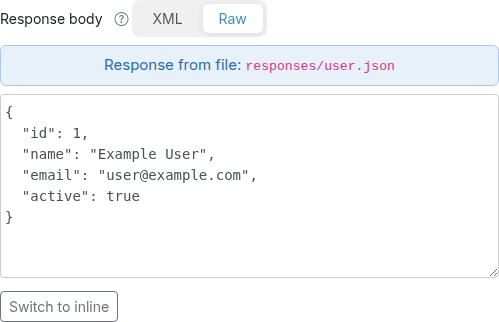
When you open this mapping in the Add/Edit page, the response body is read-only and a note above the response body field tells you the body is served from a file rather than typed inline (see Viewing a file-backed response in the UI).

Viewing a file-backed response in the UI

When you open a mapping whose response uses bodyFileName on the Add/Edit page, Traffic Parrot shows an information note directly above the response body field reading Response from file: followed by the file name. This makes it clear that the body shown is loaded from __files and is not editable inline — to change it, edit the file on disk.

Per-scenario __files

If you organise mappings into scenarios, each scenario has its own __files directory alongside its mappings directory. A bodyFileName on a scenario's mapping resolves against that scenario's __files:

scenarios/
└── my-scenario/
    ├── mappings/
    │   └── greeting.json   ← "bodyFileName": "body.txt"
    └── __files/
        └── body.txt        ← scenario-scoped response body

This keeps each scenario self-contained, so the bodies a scenario depends on travel with the scenario when you copy or share it.

Using a __files location other than the default

By default the files root is the Traffic Parrot working directory (file:.), so body files live under __files in the Traffic Parrot install directory (and under each scenario for scenario-scoped mappings). If you want your body files and mappings to live somewhere else — for example a shared data directory under version control, or a mounted volume — set the files root with a property in trafficparrot.properties:

trafficparrot.virtualservice.trafficFilesRootUrl=file:/path/to/data

The value is a file: URL pointing at the directory that contains your mappings and __files directories. Its default is file:. (the current working directory). With the files root pointed at /path/to/data, a mapping's bodyFileName resolves under /path/to/data/__files (or the matching scenario's __files). See the property reference for trafficparrot.virtualservice.trafficFilesRootUrl for the full description and further examples.

Templated file-backed responses

A body file is not limited to a fixed payload. It can contain the same Handlebars templating helpers you can use in an inline response body, so a single file-backed response can vary with the incoming request. This combines the readability of an external file with the flexibility of dynamic responses.

For example, a mapping that echoes back a list of ids from the request body:

{
  "request": {
    "urlPath": "/requestJsonPathList",
    "method": "ANY",
    "bodyPatterns": [ {
      "matchesJsonPath": "$.items"
    } ]
  },
  "response": {
    "status": 200,
    "bodyFileName": "requestJsonPathList.json"
  }
}

with the body file __files/requestJsonPathList.json using Handlebars to iterate over the request's items array:

{
    "type": "response",
    "items": [
        {{#each (jsonPathList request.body '$.items') }}
        { "id": {{ jsonPath this '$.id' }}, "status": "OK" }{{#unless @last}},{{/unless}}
        {{/each}}
    ]
}

A ready-to-run version of this example ships in the examples project. For the full list of helpers and request data you can reference from a templated body (whether inline or file-backed), see Generate responses and Use request data in response.

Troubleshooting: missing body file

If a mapping references a bodyFileName that does not exist under the resolved __files directory, Traffic Parrot reports the problem rather than silently returning an empty body: the matched request returns an HTTP 500 error and a FileNotFoundException naming the expected path is logged. Check that:

  • The file name in bodyFileName matches the file on disk exactly, including case and any subdirectory prefix
  • The file is in the __files directory that is a sibling of the mapping's mappings directory (or the scenario's __files for scenario-scoped mappings)
  • If you have set trafficparrot.virtualservice.trafficFilesRootUrl to a non-default location, the __files directory is under that location

The same "resolve relative to the sibling __files" rule also applies when you externalise a request body to a file for matching, so request- and response-side body files live side by side under the same __files directory. (A missing request body file is reported earlier still — when the mapping is loaded — rather than at request time.)

Next steps

Binary file in response

The simplest way to create a mock in Traffic Parrot that returns a binary file in the response is to create that mock by doing a recording. That assumes you have a real service that you can record. Refer to the recording section on how to create HTTP mocks using the recorder.

If you don't have a real service that returns the binary file in the response, you can create a mapping manually. This is a binary example of the general file-backed response mechanism.

To create a mock that returns a binary file in a response manually, for example a PDF file:
  1. Create a file in trafficparrot-x.y.z/mappings directory called, for example mappings/mapping-dummy-file.json
  2. The mapping-dummy-file.json should contain the following (notice the reference to body-dummy-file.pdf):
    {
      "id": "5d6a8f32-914c-4b67-ae15-f2c9d7b3e091",
      "name": "mapping-dummy-file.json",
      "request": {
        "url": "/dummy.pdf",
        "method": "GET"
      },
      "response": {
        "status": 200,
        "bodyFileName": "body-dummy-file.pdf",
        "headers": {
          "Content-type": "application/pdf"
        }
      }
    }
  3. Create the binary response body file body-dummy-file.pdf in trafficparrot-x.y.z/__files. You can use any PDF file just make sure the filename is specified in the mapping json file in bodyFileName attribute as we already did above.
  4. Now if you visit http://localhost:8081/dummy.pdf then a PDF binary file will be returned.

Serving static images

Here are three options you have if you would like to serve static images in Traffic Parrot.

You can download sample mappings here: static_images_sample_mappings.zip

Generic Dummy Image (Simplest approach)

Use a single placeholder image for all image requests. This is ideal for basic testing where the actual image content doesn't matter (e.g., http://localhost:8080/images/any-skirt.jpg).

{
  "id": "a1b2c3d4-e5f6-7890-abcd-ef1234567890",
  "name": "Generic Image Response",
  "request": {
    "method": "GET",
    "urlPattern": "/images/.*"
  },
  "response": {
    "status": 200,
    "bodyFileName": "sample-image.jpg",
    "headers": {
      "Content-Type": "image/jpeg",
      "Cache-Control": "public, max-age=3600"
    }
  },
  "uuid": "a1b2c3d4-e5f6-7890-abcd-ef1234567890",
  "priority": 5
}

Size-Specific Dummy Images (More realistic)

Serve different images based on URL patterns, useful when your application expects images of specific dimensions. You can create these using tools like ImageMagick on a Mac or any image editor (e.g., http://localhost:8080/images/320x240-skirt.jpg).

{
  "id": "b2c3d4e5-f6a7-8901-cdef-012345678902",
  "name": "320x240 Image Response",
  "request": {
    "method": "GET",
    "urlPattern": "/images/320x240.*"
  },
  "response": {
    "status": 200,
    "bodyFileName": "sample-image-320x240.jpg",
    "headers": {
      "Content-Type": "image/jpeg",
      "Cache-Control": "public, max-age=3600"
    }
  },
  "uuid": "b2c3d4e5-f6a7-8901-cdef-012345678902",
  "priority": 1
}
{
  "id": "b1c2d3e4-f5a6-7890-bcde-f12345678901",
  "name": "640x480 Image Response",
  "request": {
    "method": "GET",
    "urlPattern": "/images/640x480.*"
  },
  "response": {
    "status": 200,
    "bodyFileName": "sample-image-640x480.jpg",
    "headers": {
      "Content-Type": "image/jpeg",
      "Cache-Control": "public, max-age=3600"
    }
  },
  "uuid": "b1c2d3e4-f5a6-7890-bcde-f12345678901",
  "priority": 1
}

Real Recorded Images (Most realistic)

Use actual images from your application, either recorded during a session or manually configured. This provides the most accurate simulation (e.g., http://localhost:8080/images/product-123.jpg).

{
  "id": "c1d2e3f4-a5b6-7890-def1-123456789012",
  "name": "Product 123 Image Response",
  "request": {
    "method": "GET",
    "url": "/images/product-123.jpg"
  },
  "response": {
    "status": 200,
    "bodyFileName": "images/product-123.jpg",
    "headers": {
      "Content-Type": "image/jpeg",
      "Cache-Control": "public, max-age=86400",
      "ETag": "\"3e25960a79dbc69b674cd4ec67a72c62\""
    }
  },
  "uuid": "c1d2e3f4-a5b6-7890-def1-123456789012",
  "priority": 1
}

Key Points serving static images

  • Store image files in the __files directory or __files/images
  • Use bodyFileName to reference the files
  • Set appropriate Content-Type headers (image/jpeg, image/png, etc.)
  • Consider adding Cache-Control headers for better performance
  • Use priorities when combining multiple approaches

HTTP Passthrough Proxy

Overview

The HTTP passthrough proxy lets you forward requests that do not match any stub mapping to a real backend service. This is useful during development when you want to selectively mock only certain endpoints while letting all other traffic pass through to the real system.

When passthrough is enabled, Traffic Parrot automatically creates a low-priority catch-all proxy mapping on startup. Any request that does not match a higher-priority stub is forwarded to the configured target URL, and the real response is returned to the caller.

You can then inspect proxied requests in the Request Log and create stubs from them with a single click, allowing you to incrementally build up your virtual service.

Setting up passthrough

To enable passthrough proxy mode, set the trafficparrot.virtualservice.proxy.defaultTargetUrl property to the base URL of the real backend service. You can set this in trafficparrot.properties or as a system property (e.g. via -Dtrafficparrot.virtualservice.proxy.defaultTargetUrl=http://backend:8080).

For example:

trafficparrot.virtualservice.proxy.defaultTargetUrl=http://my-backend:8080

On startup, Traffic Parrot creates a catch-all proxy mapping named "Default proxy to http://my-backend:8080" with priority 10. Because user-created stubs use default priority 5 (which is higher), any stub you create will automatically take precedence over the proxy.

The auto-created proxy mapping is visible in the HTTP Add/Edit mappings list. It cannot be edited or deleted from the UI because it is managed by the property. An info button appears in the actions column explaining the configuration.

To change the target URL, update the property value and restart Traffic Parrot. To remove passthrough entirely, clear the property value and restart.

Disabling passthrough

To temporarily disable passthrough without removing the target URL configuration, set the trafficparrot.virtualservice.proxy.enabled property to false:

trafficparrot.virtualservice.proxy.enabled=false

When disabled, the auto-proxy mapping is not created on startup even if defaultTargetUrl is set. Requests that do not match any stub will return an unmatched response (status 900) instead of being forwarded.

The default value is true, so passthrough is enabled whenever defaultTargetUrl is configured.

Proxied requests in the request log

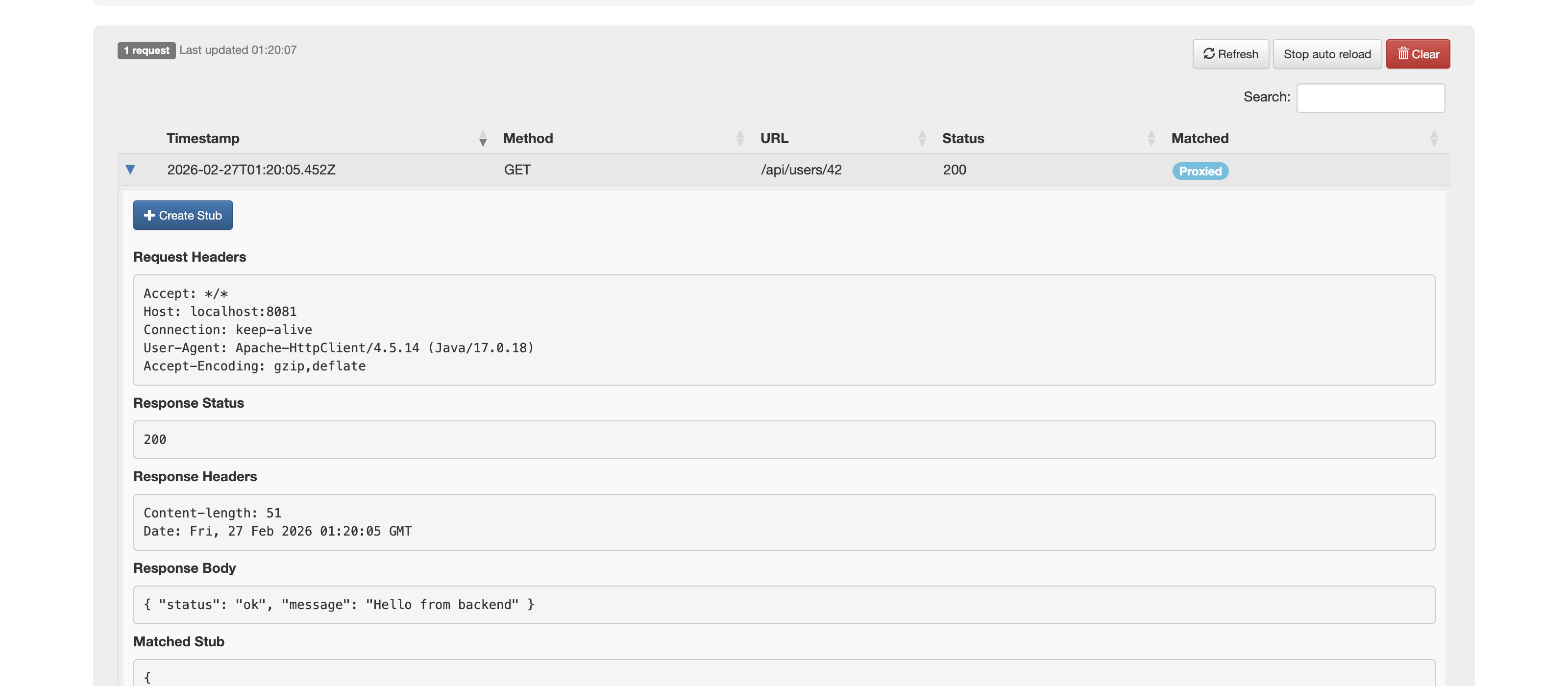
When passthrough proxy mode is active, proxied requests appear in the Request Log with a blue "Proxied" badge in the Matched column instead of the green "Yes" badge. Hovering over the badge shows a tooltip with the proxy target URL (e.g. "Proxied to http://my-backend:8080").

This visual distinction makes it easy to see which requests were handled by stub mappings and which were forwarded to the real backend.

Creating stubs from proxied requests

Each proxied request in the request log has a "Create Stub" button in its expanded detail view. Clicking it creates a new stub mapping based on the captured request and the actual response from the backend.

The created stub uses:

  • The request HTTP method and an exact URL match (urlEqualTo)
  • An exact request body match (when a request body is present)
  • The actual response status code, headers, and body from the backend

Transport-specific headers such as Host, Connection, Transfer-Encoding, and Content-Length are automatically excluded from the stub because they are managed by the HTTP transport layer.

After the stub is created, a green notification appears with the message "Stub created for GET /your-path" (showing the actual method and URL). The notification includes a "View in Add/Edit" link that takes you to the HTTP Add/Edit page and opens the mapping editor for the new stub, where you can review and adjust the stub before use.

Once the stub is saved, subsequent requests to the same URL will be served by the static stub instead of being proxied to the backend. This allows you to incrementally build up your virtual service by exercising your application normally and converting real responses into stubs one at a time.

The "Create Stub" button only appears for proxied requests. It is not shown for requests that matched an existing stub or for unmatched requests.

Request Log

Overview

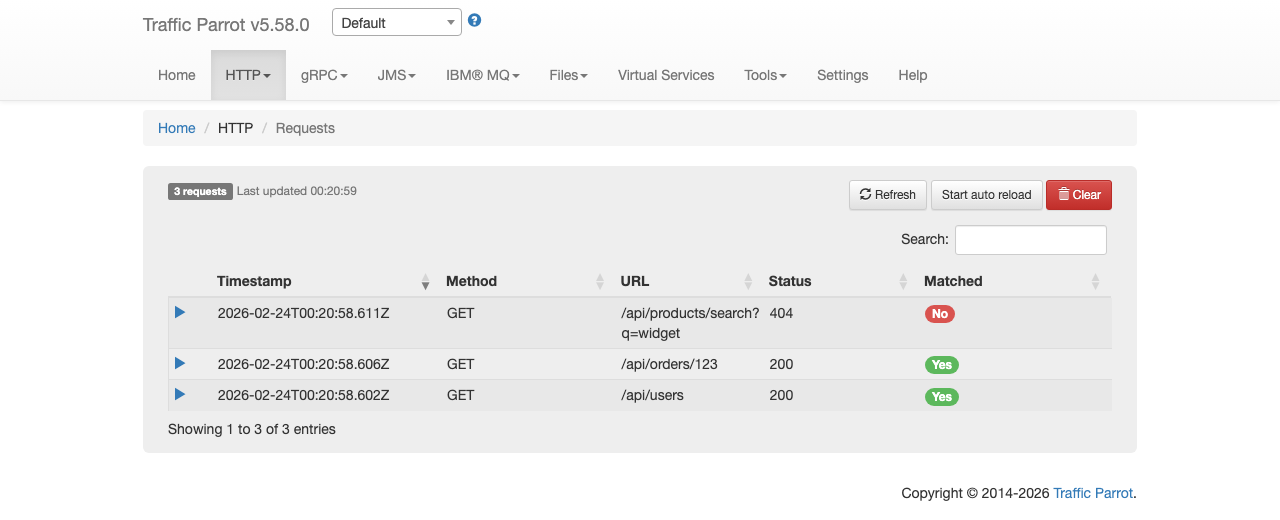
The Request Log page shows all HTTP requests received by the virtual service. You can access it from the HTTP dropdown menu in the top navigation bar by clicking "Requests".

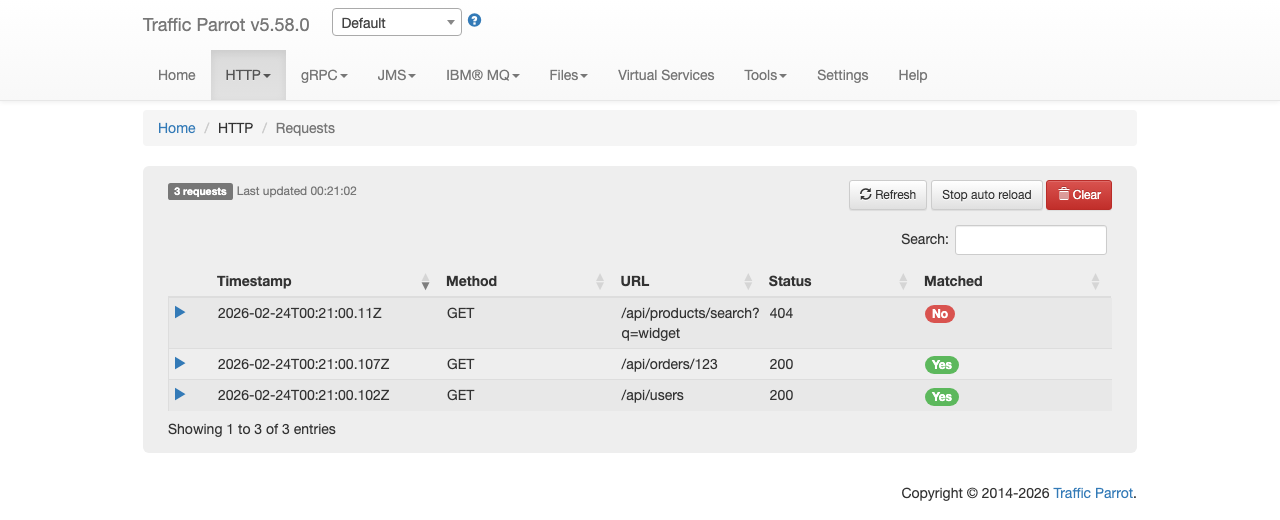
Each row in the table displays the request timestamp, HTTP method, URL, response status code, and whether the request was matched to an existing stub mapping. Matched requests show a green "Yes" badge, unmatched requests show a red "No" badge, and proxied requests show a blue "Proxied" badge (see HTTP Passthrough Proxy).

The page header shows the total number of requests and a "Last updated" timestamp indicating when the data was last refreshed.

Viewing request details

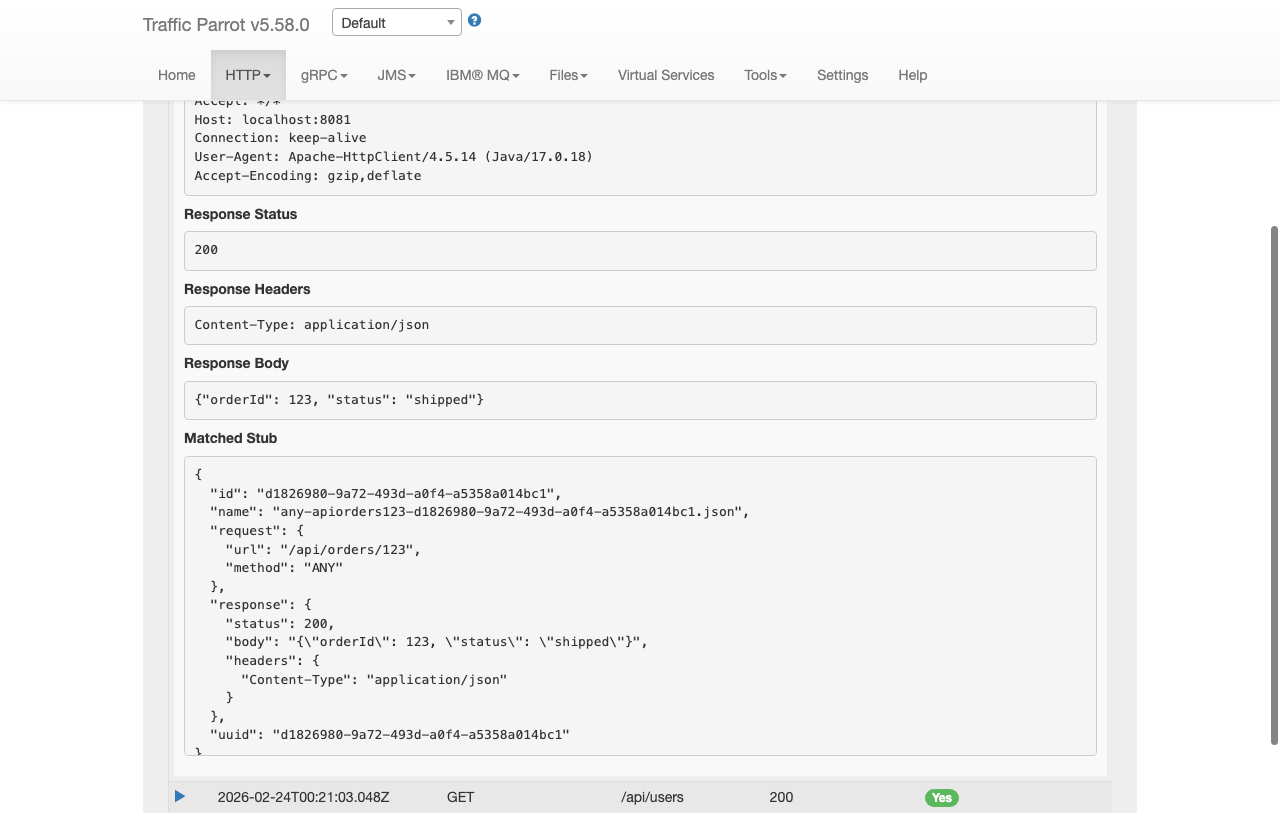
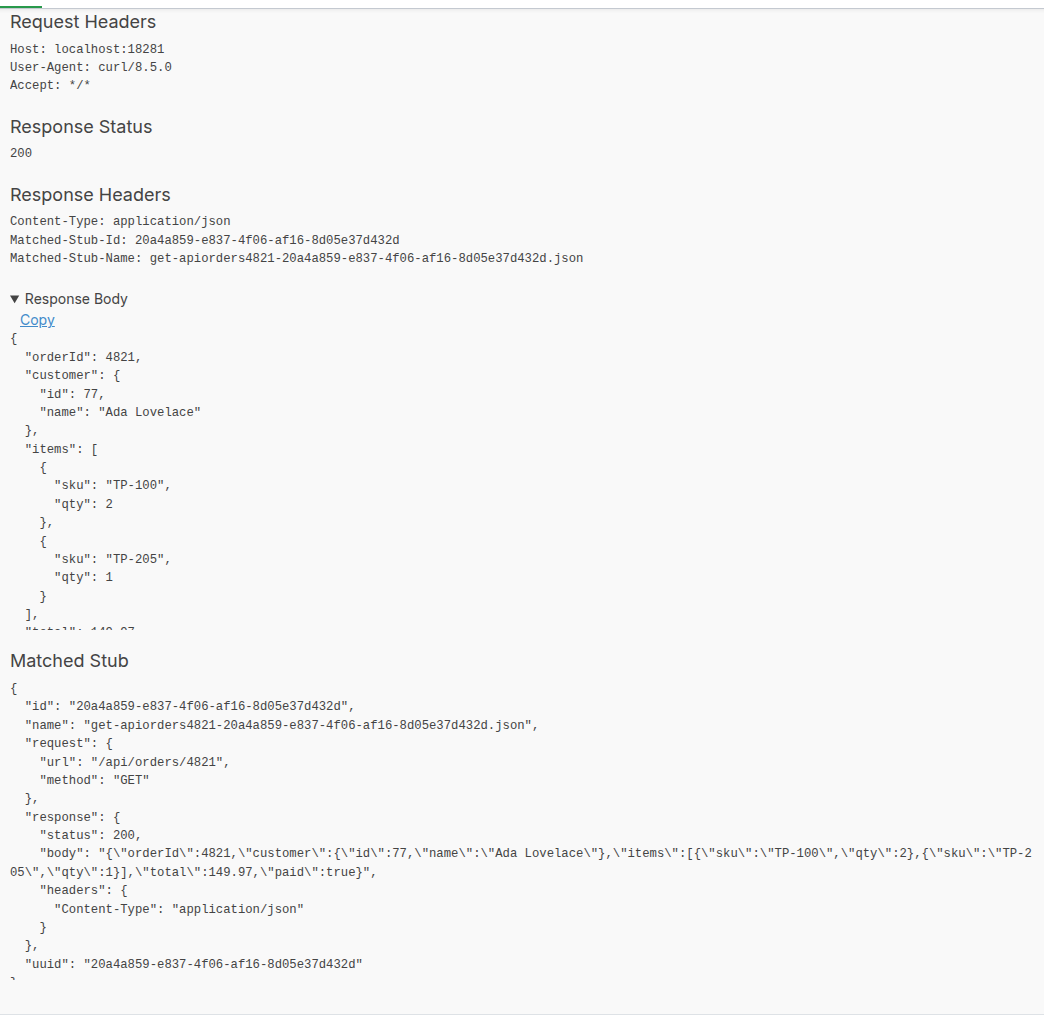
Click the expand arrow on any row to view full details of the request and its response. The expanded section shows the request headers, request body, response status, response headers, and response body.

For matched requests, a "Matched Stub" section displays the full JSON definition of the stub mapping that was used to generate the response. This is useful for understanding which mapping handled the request.

Pretty-printed request and response bodies

When a request or response body is JSON or XML, it is automatically pretty-printed (indented and shown over multiple lines) in the expanded detail section, so that you can read the structure at a glance instead of scanning a single long line.

Each body block is collapsible: click the heading ("Request Body" or "Response Body") to fold it away when you want to focus on the rest of the detail panel. A Copy button next to each body copies the original, unformatted body to your clipboard, so what you paste matches the bytes that were actually sent or received, not the pretty-printed version shown on screen.

The same pretty-printing and Copy button are available wherever request bodies are logged, including the gRPC requests page and the JMS, IBM MQ, and file messaging requests pages.

Bodies are shown exactly as received (raw, on a single line) when they cannot be safely formatted — for example when the body is not well-formed JSON or XML, is not a JSON or XML content type, or is large enough to be truncated for display (bodies over 10 KB are truncated, with a note showing the total size).

Near misses for unmatched requests

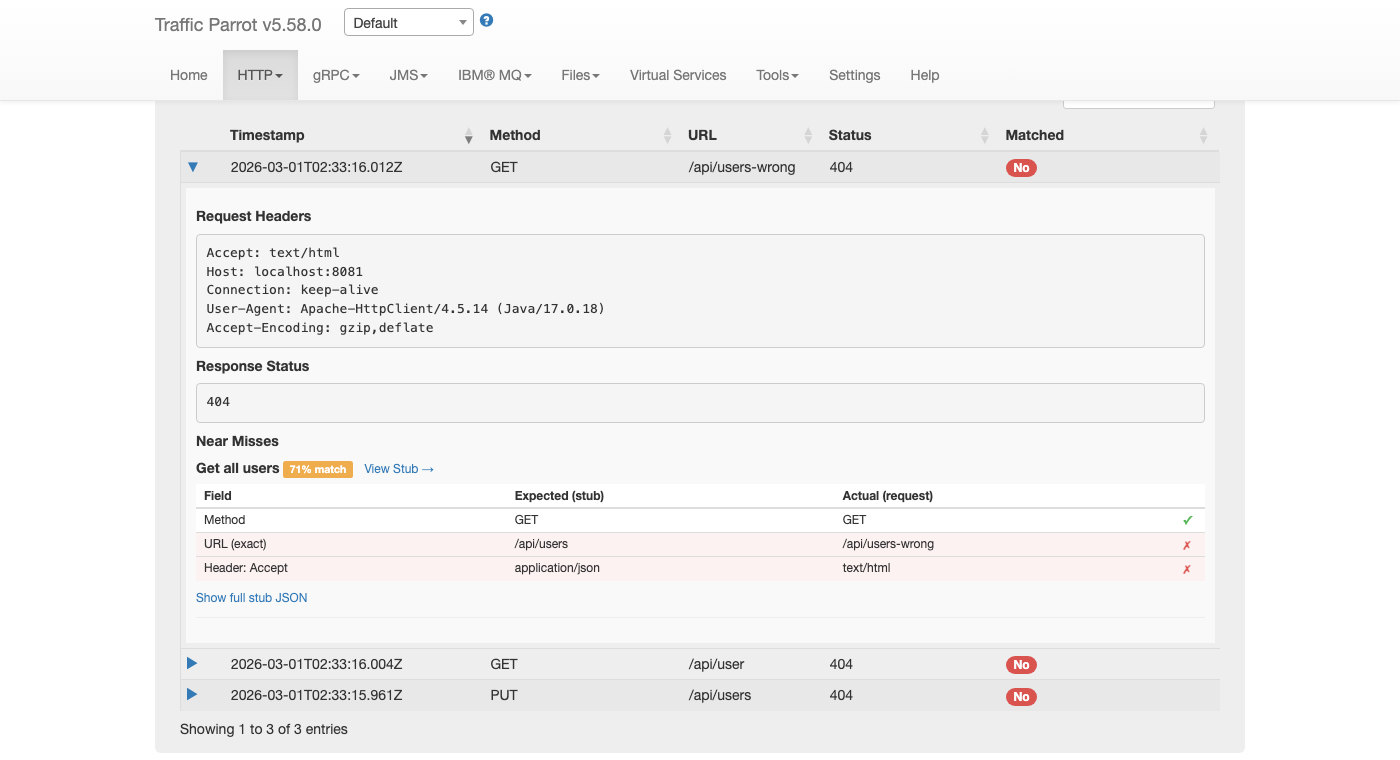
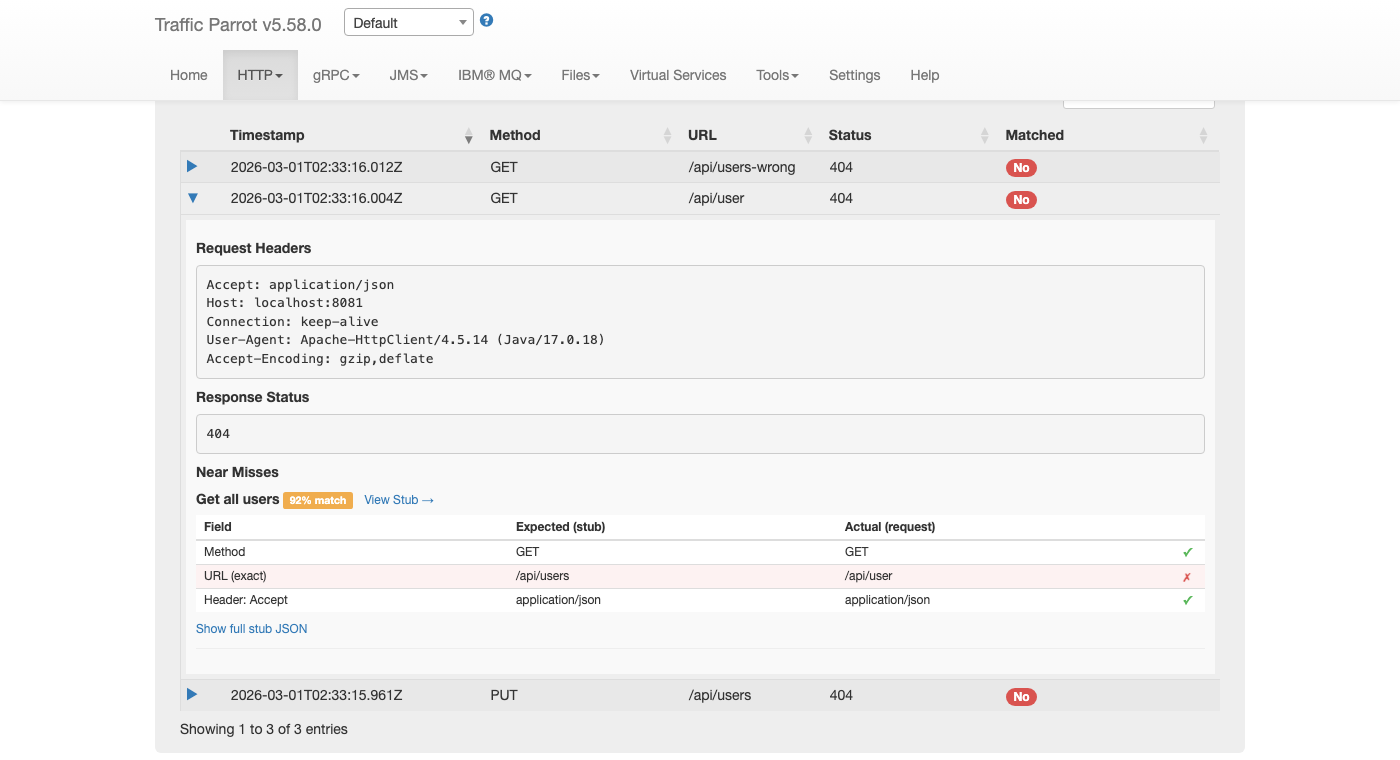
When you expand an unmatched request (one with a red "No" badge), the detail section shows a "Near Misses" list instead of a matched stub. Near misses are the existing stub mappings that came closest to matching the request, along with a percentage indicating how close each match was.

Each near miss displays a per-field comparison table that shows exactly which fields matched and which did not. The table compares the stub's expected values against the actual request values for each field: Method, URL, Headers, and Body.

Each row in the comparison table has an indicator on the right:

  • A green checkmark means the field matched the stub's expected value
  • A red cross means the field did not match — mismatched rows are highlighted with a red background so you can quickly spot the problem
  • A grey question mark means the match could not be evaluated in the browser (for example, JSONPath, XPath, or XML body patterns)

In the example above, a request to GET /api/users-wrong with an Accept: text/html header is compared against a stub expecting GET /api/users with Accept: application/json. The Method matches (green checkmark), but both the URL and Accept header are mismatched (red crosses), making it immediately clear why the request was not matched.

Near miss stub name and match percentage

Each near miss entry shows the stub's human-readable name as its heading, when one has been set. If the stub does not have a name, the heading displays the stub's method and URL pattern instead. Next to the name, an orange badge shows the match percentage (for example, "92% match"), which indicates how closely the request matched that stub.

View Stub link

Each near miss entry includes a "View Stub" link next to the stub name. Clicking this link navigates directly to the HTTP Stubs page and opens the edit dialog for that specific stub mapping. This allows you to quickly fix the stub's request pattern when you can see which field did not match.

Viewing the full stub JSON

Below the comparison table, a "Show full stub JSON" link is available for users who need to see the complete stub mapping definition. Clicking this link toggles a collapsible section that displays the raw JSON of the stub, including the response body, metadata, and UUID. This is hidden by default to keep the near miss display focused on the comparison table.

Auto-refresh

The request log automatically refreshes every second, so new requests appear in the table without requiring a manual page reload. This is useful when monitoring live traffic to the virtual service.

You can pause auto-refresh by clicking the "Stop auto reload" button. When paused, the button changes to "Start auto reload" and no further automatic updates occur until you resume. The manual "Refresh" button continues to work at any time.

Auto-refresh also pauses automatically when you expand a detail row, select text in the table, or hover over a tooltip. This prevents the data from changing while you are inspecting it.

Clearing the request log

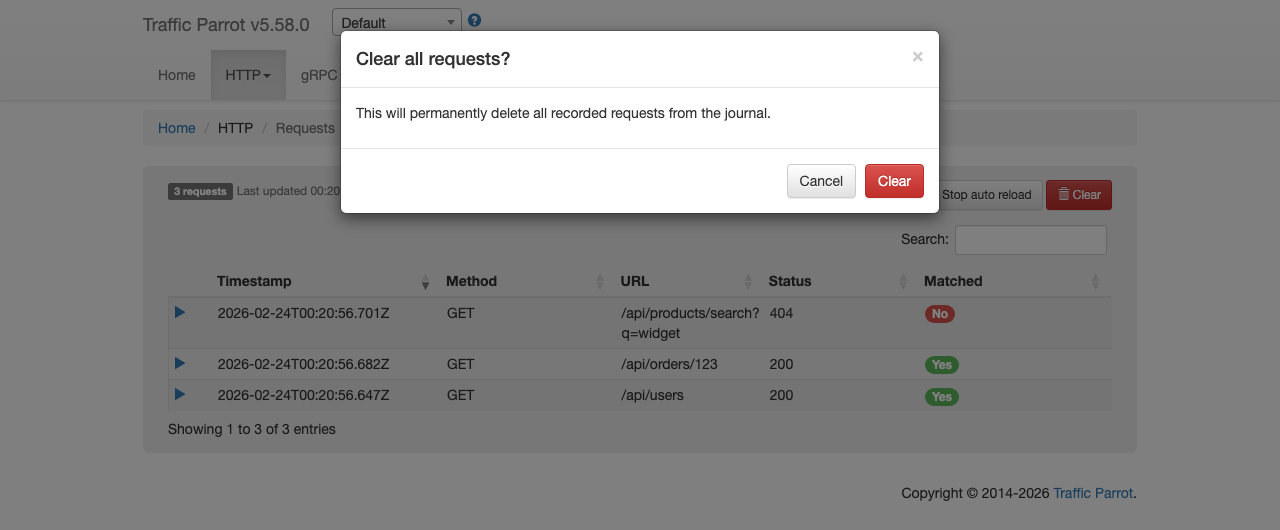
Click the red "Clear" button to delete all recorded requests from the journal. A confirmation dialog appears asking you to confirm before the requests are permanently removed.

Configuration

See configuration in the user guide.

Typical environments

See typical environments in the user guide.

Proof of concept with on-premises installation at a large enterprise

See proof of concept in the user guide.

Dynamic responses and custom extensions